

Overview
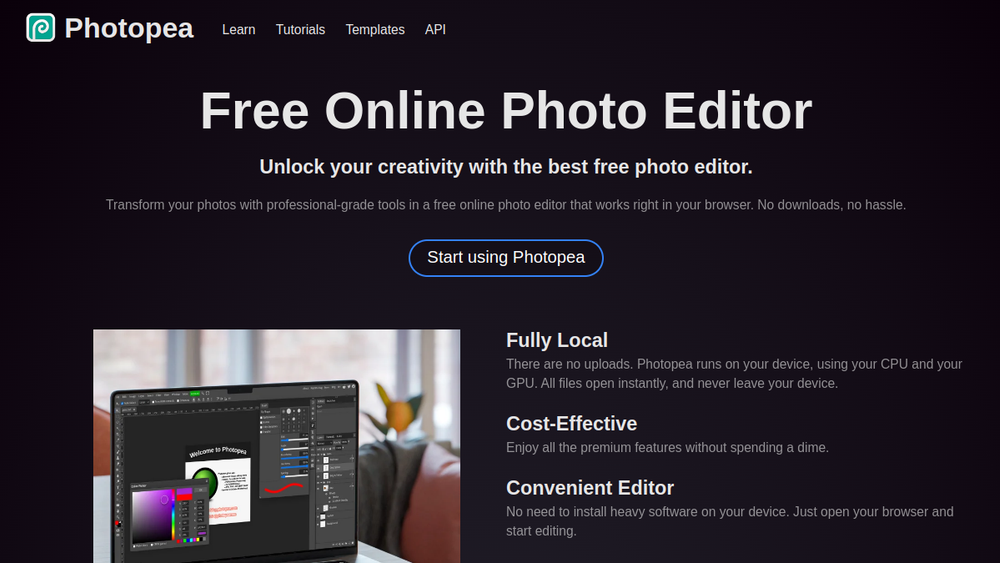
Photopea is a free, browser-based photo editor that provides a comprehensive set of image editing tools directly in your web browser. It is designed to handle a wide range of file formats, including PSD, PNG, JPG, GIF, SVG, PDF, and RAW files, making it a versatile option for both casual users and professionals. The editor runs entirely on your device, meaning there are no uploads, and files open instantly without leaving your computer.
Photopea positions itself as a cost-effective alternative to desktop software, offering features like layers, masks, blending modes, and advanced adjustments. It is particularly useful for those who need to work with PSD files but do not have access to Adobe Photoshop. With support for AI-powered tools, such as background removal and content replacement, it aims to provide a modern editing experience in a convenient, no-install package.
Best for
- Graphic designers who need to open and edit PSD files without purchasing expensive software.
- Social media enthusiasts looking to enhance photos before sharing on platforms like Instagram or Facebook.
- Students and educators creating visuals for presentations, assignments, or educational projects.
- Small business owners who want to design promotional materials or edit product photos without a dedicated design team.
- Freelancers and remote workers who need a reliable photo editor that works on any device with a browser.
Key capabilities
- Full PSD support: Open and save files in the PSD format, the primary format of Photopea, ensuring compatibility with Adobe Photoshop projects.
- Wide format compatibility: Supports over 40 file formats, including PNG, JPG, GIF, BMP, WEBP, SVG, PDF, AI, AVIF, DDS, HEIC, TIFF, MP4, TGA, CDR, PDN, EPS, INDD, and Figma files.
- Professional editing tools: Includes layers, masks, layer styles, smart objects, adjustment layers, channels, paths, and more, covering both basic and advanced editing needs.
- AI-powered features: Offers one-click background removal and the ability to replace parts of an image using text descriptions.
- Adjustments and filters: Provides a wide range of adjustments like Levels, Curves, and filters such as Gaussian Blur, Liquify, and Puppet Warp.
- Vector graphics: Allows creation and editing of vector graphics directly within the editor, suitable for logos, icons, and illustrations.
Common workflows
- Editing a PSD file: Open a PSD file from your computer, make changes to layers, apply adjustments, and save the file back in PSD format without losing layer information.
- Removing a background: Use the AI background removal tool to quickly isolate a subject, then refine the edges with masks and export as a PNG with transparency.
- Creating social media graphics: Design a promotional post by adding text, shapes, and filters, then export in the appropriate size for Instagram or Facebook.
- Retouching photos: Use healing tools, clone stamp, and adjustment layers to correct blemishes, adjust exposure, and enhance colors.
- Converting file formats: Open a RAW file from a camera, apply basic exposure and color corrections, then export as a JPEG or PNG for sharing.
What to evaluate
- File format compatibility: Consider whether the formats you work with (e.g., PSD, RAW, SVG) are fully supported for both opening and saving, especially if you collaborate with others using different software.
- Performance on your device: Since Photopea runs locally, the speed and responsiveness depend on your hardware. Test with large files to ensure it meets your needs.
- Feature depth for your tasks: While Photopea offers many advanced features, evaluate if it covers all the specific tools you rely on, such as specific filters or vector editing capabilities.
- Collaboration and sharing: Photopea does not have built-in real-time collaboration features. If you work in teams, consider how you will share files and coordinate edits.
- Export options: Check if the export settings (e.g., file types, compression, dimensions) align with your output requirements, especially for web or print.
Getting started
- Open your web browser and navigate to the official Photopea website at https://www.photopea.com.
- Click on "Start Using Photopea" or simply open an image file from your device to begin editing.
- Explore the interface, which resembles traditional photo editors, and use the toolbar and panels to access tools, layers, and adjustments.
Why ToolSift lists it
Photopea is listed under the Design category with tags Design Tools, Graphic Design, and Image Editing because it is a free, browser-based image editor that serves a wide range of design needs. The official URL was verified as https://www.photopea.com, and the page confirms its features and accessibility. For more information, visit Photopea.

