

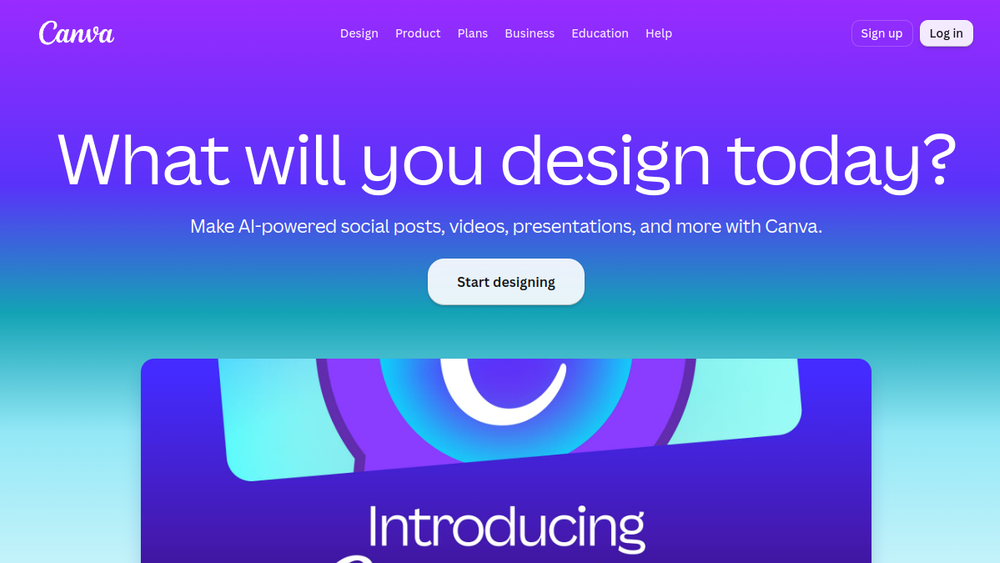
Overview
Canva is a widely used graphic design platform that enables individuals and teams to create a variety of visual content without requiring advanced design skills. It provides a browser-based editor with a vast library of templates, stock photos, and design elements, allowing users to produce everything from social media posts to presentations and marketing materials.
As a design tool, Canva fits into the workflow of marketers, small business owners, educators, and non-designers who need to produce polished visuals quickly. It bridges the gap between professional design software and simple image editors, offering a user-friendly interface with collaborative features.
Best for
- Small business owners and entrepreneurs creating marketing materials like flyers, social media graphics, and business cards.
- Social media managers who need to produce consistent, on-brand content across multiple platforms.
- Educators and students designing presentations, infographics, and classroom resources.
- Non-profit organizations and event planners creating promotional materials and invitations.
- Individuals looking to create personal projects such as invitations, resumes, or photo collages.
Key capabilities
- Drag-and-drop editor with a large collection of templates for various use cases.
- Extensive library of stock photos, illustrations, icons, and fonts.
- Text and image editing tools, including filters, cropping, and background removal.
- Collaboration features that allow multiple users to edit a design in real time.
- Brand kit functionality to store logos, colors, and fonts for consistent branding.
- Export options for common formats like PNG, JPEG, PDF, and animated GIFs.
Common workflows
- Creating a social media graphic: Choose a template for the desired platform (e.g., Instagram post), customize text and images, apply brand colors, and download as PNG.
- Designing a presentation: Select a presentation template, add slides with charts and images, and present directly from Canva or export to PowerPoint.
- Building a marketing flyer: Use a flyer template, insert event details and a call-to-action, then export as PDF for printing or digital distribution.
- Collaborating on a team project: Share a design link with team members, assign editing permissions, and use comments to gather feedback in real time.
- Producing a video for social media: Use a video template, add clips, text overlays, and music, then export as MP4.
What to evaluate
- Asset formats: Consider whether the export options (PNG, JPEG, PDF, etc.) meet your needs for print and digital use.
- Prototyping depth: If you need interactive prototypes, evaluate whether Canva's features (like linking pages) are sufficient or if a dedicated prototyping tool is required.
- Collaboration and handoff: Assess how well the collaboration features work for your team, and whether design handoff to developers is supported (e.g., via export or integrations).
- Brand-system workflows: If you require strict brand consistency, evaluate the brand kit features and whether they cover your needs for fonts, colors, and logos.
- Export controls: Check if the free version includes all export options or if some are limited, and whether the quality meets your standards.
Getting started
- Visit the official Canva website and sign up for an account using an email or social login.
- Choose a template or start with a blank canvas, then explore the editor's tools and library.
- Customize your design with text, images, and elements, then download your creation in your preferred format.
Why ToolSift lists it
Canva is categorized under Design, with tags including Design Tools, Graphic Design, and Image Editing, reflecting its role as a versatile design platform. The official URL (https://www.canva.com) was verified as the canonical source for the product. For more information, visit Canva's official website.

