

Overview
Roblox Studio is the official development environment for creating games and experiences on the Roblox platform. It provides a comprehensive set of tools for building, scripting, testing, and publishing content directly to Roblox's global audience. As a free application, it lowers the barrier to entry for aspiring game developers, offering a visual editor, a built-in scripting language (Lua), and a vast library of assets and templates.
Roblox Studio fits within the broader game development ecosystem as a platform-specific tool, meaning it is designed exclusively for creating content that runs on Roblox. This integration allows creators to focus on game design and logic without worrying about server infrastructure or distribution, as Roblox handles hosting, matchmaking, and cross-platform compatibility. It is particularly suited for developers who want to reach a large, built-in player base and monetize their creations through Roblox's virtual economy.
Best for
- Aspiring game developers who want a free, accessible entry point into game creation without needing to set up complex development environments.
- Hobbyists and indie creators looking to prototype and publish 2D or 3D games quickly to a large, existing audience.
- Educators and students who use game development as a learning tool for programming, design, and collaboration.
- Teams of creators who need a collaborative environment to build and iterate on multiplayer experiences.
- Developers seeking to monetize their games through Roblox's in-platform economy, including virtual items and game passes.
Key capabilities
- Visual Editor: A drag-and-drop interface for building 3D worlds, with support for terrain, lighting, and physics.
- Lua Scripting: A built-in scripting language that allows for custom game logic, interactions, and UI.
- Asset Library: Access to a vast collection of models, textures, sounds, and plugins created by the Roblox community.
- Cross-Platform Publishing: One-click publishing to Roblox, which automatically supports PC, mobile, console, and VR devices.
- Testing and Debugging: Tools to simulate gameplay, test multiplayer scenarios, and debug scripts in real-time.
- Collaboration Features: Team creation tools that allow multiple developers to work on the same project simultaneously.
Common workflows
- Building a 3D environment: Start with a template or blank project, use the terrain editor to sculpt landscapes, and place parts and models from the library to construct a playable space.
- Scripting game mechanics: Write Lua scripts to control player movement, enemy AI, scoring, and other interactive elements, using the built-in script editor and output console for debugging.
- Testing and iterating: Use the Play button to test the game locally, simulate multiple players to check multiplayer functionality, and refine gameplay based on feedback.
- Publishing and updating: Once satisfied, publish the game to Roblox with a click, then manage updates and monitor player analytics through the Creator Dashboard.
- Collaborating with a team: Use Team Create to invite others to edit the same place in real-time, with changes synced automatically.
What to evaluate
- Platform Lock-in: Since Roblox Studio is exclusive to the Roblox platform, consider whether you want to build for Roblox's ecosystem or prefer a more general-purpose engine like Unity or Unreal.
- Scripting Language: Lua is a simple yet powerful language, but if you are already proficient in C# or JavaScript, you may need to adapt to a different syntax and paradigm.
- Asset Pipeline: While the asset library is extensive, importing custom 3D models may require additional steps and format conversions; evaluate whether your workflow aligns with Roblox's supported formats.
- Performance and Scalability: For complex games, consider how Roblox's engine handles large worlds, many players, and physics; test performance early to avoid bottlenecks.
- Monetization and Licensing: Understand Roblox's revenue share and content policies, as they affect how you can monetize your creations and what rights you retain.
Getting started
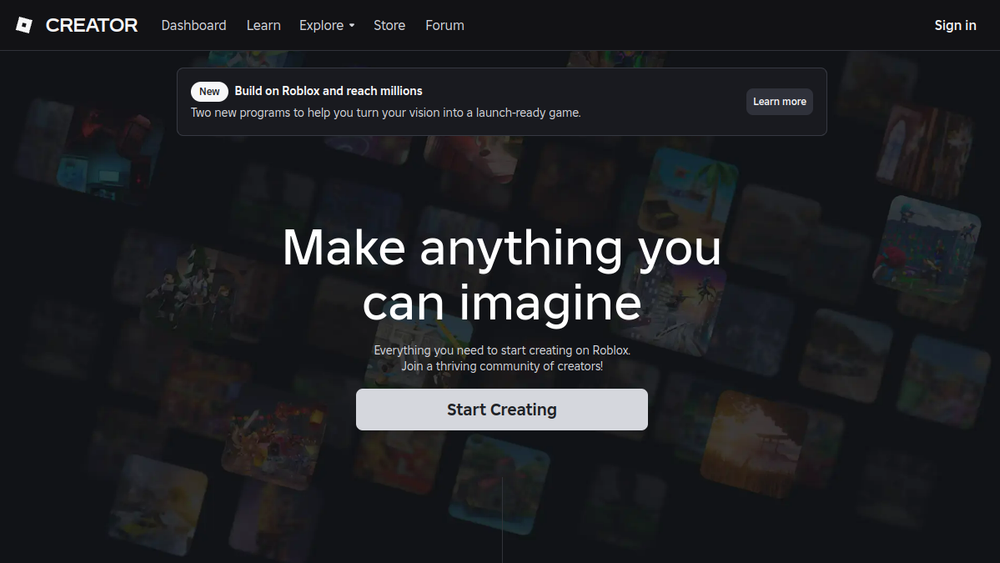
- Download and install: Visit the official Roblox Creator Hub at https://create.roblox.com and download Roblox Studio for free on Windows or macOS.
- Explore templates: Open Roblox Studio and choose from a variety of starter templates, such as a basic platform or a 3D world, to familiarize yourself with the interface.
- Learn the basics: Use the built-in tutorials and documentation to learn how to navigate the editor, place objects, and write your first Lua script.
Why ToolSift lists it
Roblox Studio is listed under the Games and Development categories, with tags including Game Development, Game Engine, Developer Tools, 2D, and 3D, because it is a comprehensive tool for creating interactive experiences. The official URL was verified as https://create.roblox.com, which is the primary entry point for downloading the software and accessing the Creator Dashboard. For more information, visit Roblox Studio.
