

Overview
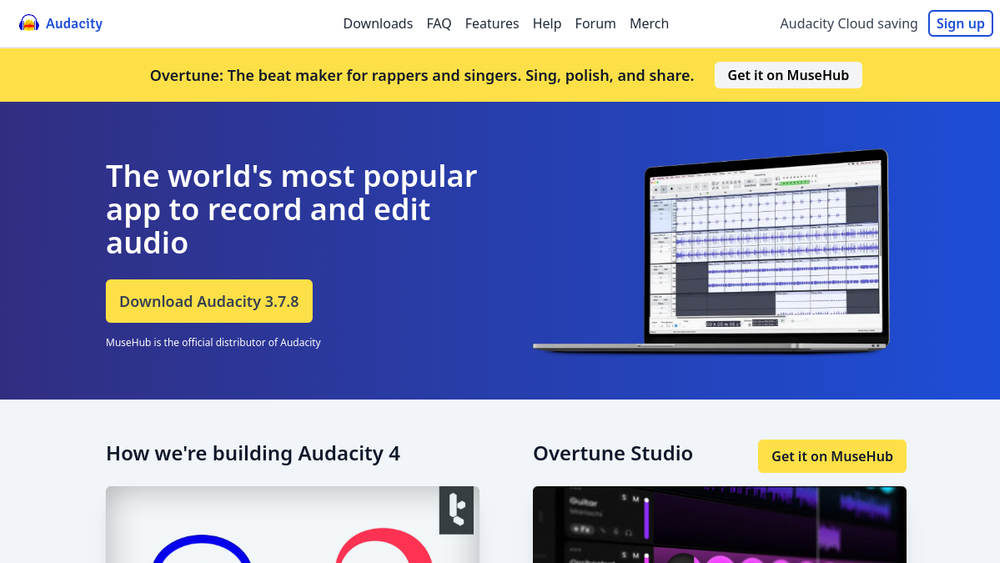
Audacity is a free, open-source audio editor and recorder available for Windows, macOS, and Linux. It is widely used for recording and editing audio, including music production, podcasting, and general audio manipulation. The software supports a range of features such as multi-track editing, effects, and plugin support, making it a versatile tool for both beginners and experienced users.
Audacity fits into the audio production workflow as a desktop application that allows users to record live audio, edit existing recordings, and export in various formats. Its open-source nature has fostered a large community of contributors and users, leading to continuous development and a rich ecosystem of plugins.
Best for
- Podcasters who need to record and edit spoken-word content with tools like noise reduction and compression.
- Musicians and home studio enthusiasts looking for a free multi-track recorder and editor for demos or full productions.
- Audio editors who require a cross-platform tool for tasks like trimming, fading, and applying effects.
- Educators and students in audio production courses who need accessible software for learning.
- Hobbyists who want to experiment with sound editing without a financial investment.
Key capabilities
- Multi-track recording and editing: Record and layer multiple audio tracks, with the ability to edit each independently.
- Cross-platform support: Available on Windows, macOS, and Linux, ensuring broad accessibility.
- Plugin support: Compatible with VST3 and Nyquist plugins, allowing users to expand functionality.
- Import and export formats: Supports WAV, MP3, FLAC, Ogg, and more, facilitating conversion and sharing.
- Advanced voice editing: Tools for cleaning up recordings, enhancing audio, and producing songs or podcasts.
- Open-source and free: The source code is open, and the software is free for everyone, with no cost or licensing fees.
Common workflows
- Podcast recording and editing: Record a conversation using a USB microphone, then use Audacity to remove background noise, normalize levels, and export as MP3.
- Music production: Record multiple instrument tracks, apply effects like reverb or EQ, and mix them down to a final stereo track.
- Audio restoration: Import an old recording, use noise reduction and click removal to clean it up, and export as a high-quality WAV file.
- Format conversion: Load an audio file in one format (e.g., WAV) and export it as MP3 or FLAC for compatibility with different devices.
- Voice-over for video: Record voice-over narration, edit out mistakes, and export as a separate audio file to sync with video editing software.
What to evaluate
- Recording quality: Assess the input monitoring and recording capabilities, including sample rate and bit depth options.
- Editing precision: Consider the ease of making precise cuts, fades, and adjustments to audio clips.
- Noise reduction and cleanup: Evaluate the effectiveness of built-in tools for removing background noise and other artifacts.
- Export options: Check the range of export formats and quality settings to ensure they meet your needs.
- Learning curve: Determine if the interface and features are intuitive for your skill level, or if you may need to consult tutorials.
Getting started
- Visit the official Audacity website at https://www.audacityteam.org and download the installer for your operating system.
- Install Audacity by following the on-screen instructions, then launch the application.
- Start a new project, select your input device (e.g., microphone), and press the record button to begin capturing audio.
Why ToolSift lists it
Audacity is categorized under Audio, with tags including Audio Editing, Audio Production, and Recording. These categories reflect its primary functions as a tool for editing and producing audio content. The official URL was verified as https://www.audacityteam.org, which is the authoritative source for downloads and information. For more details, visit Audacity's official website.

